Get File:
Please go to this webpage and then click Download to save NightIQ file to your PC.
https://www.sionyx.com/pages/nightwave-firmware
Upload Firmware File to the Nightwave Digital
Connect the blue ethernet cable from our silver PoE injector box ("DATA IN" / "TO MFD" port) to your PC.
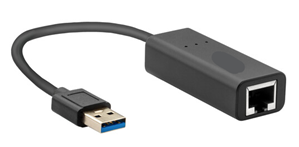
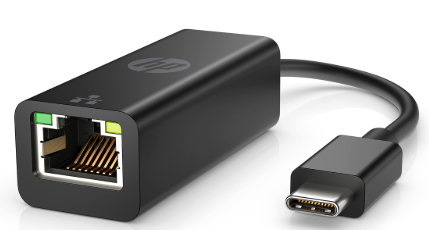
If your computer doesn’t have an RJ45 port, you will need an RJ45 female to USB adapter - see below for screenshot example. (USB A or C depending on the ports on your PC)
Or if your Nightwave Digital is already connected to your own wireless network on your vessel, connect your computer to that network.
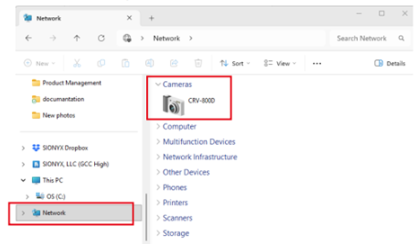
Open File Explorer / Network / Cameras / to see CRV-800D as a Camera icon
Double click on CRV-800D to access the Nightwave Digital webpage.
Hit "Login" button
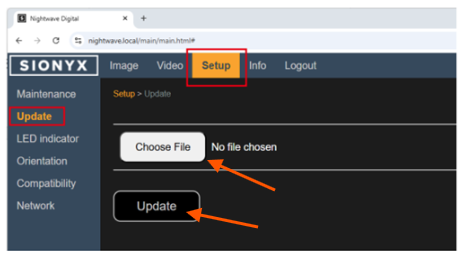
Navigate to “Setup” tab/"Update" row. Choose File. Hit Update button.
Wait until the process has completely finished.
Once uploaded, Reboot everything including MFDs with a hard reboot (power cycle).
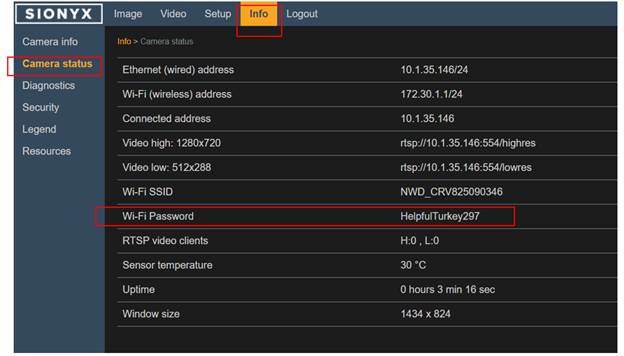
The Wi-Fi password will no longer be “sionyxcam”
It will now be the unique factory-supplied password - included in the box and printed on the camera head under the outer covers. Your password is also shown in the SIONYX Tool-panel (on the MFD or in the app) under "Info" or "Log".
The SIONYX Tool-panel icon will show the new firmware version listed there as well.
NOTE: With some Garmin MFDs it can take a long time to get rid of the cached (old) SIONYX Tool-panel icon. Even after doing a power cycle of the Garmin
In some instances there may be a second SIONYX Tool-panel icon that appears on the Garmin home screen off to the right.
After power cycling, please swipe left and right to be sure there isn’t a second SIONYX Tool-panel icon and click into that to check if the firmware is listed as the new version.
If yes, this means the firmware has been updated, but the Garmin is not getting rid of the old image yet. If you go into OneHelm Devices, then you can click the old SIONYX icon ‘off’. You won't be able to tell which OneHelm device is which, so if you click the wrong one "off" it is ok to go back and turn it back "on".
Please click here to see the User Guide which will explain the new image settings: Nightwave Digital User Guide
===================== Reference Screenshots =========================
RJ45 female to USB-A adapter
| RJ45 female to USB-C adapter
|
File Explorer / Network / Cameras
Finding File and Update button on SIONYX Tool-panel
Finding new Wifi password on SIONYX Tool-panel